Loading...
Loading...
Loading...
Loading...
Loading...
Loading...
Loading...
Loading...
Loading...
Loading...
Loading...
Loading...
Loading...
Loading...
Loading...
Loading...
Loading...
Loading...
Loading...
Loading...
Loading...
Loading...
Loading...
Loading...
Loading...
Loading...
Loading...
File extension
.xbe .iso
No BIOS required for Chihiro.
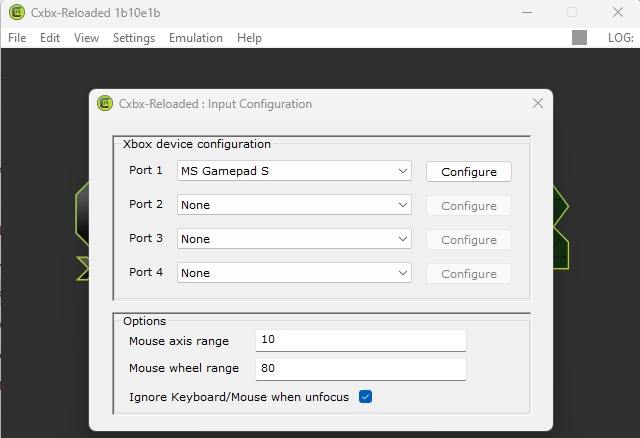
Controls must be set up directly in CXBX-Reloaded emulator in \emulators\cxbx-reloaded folder.
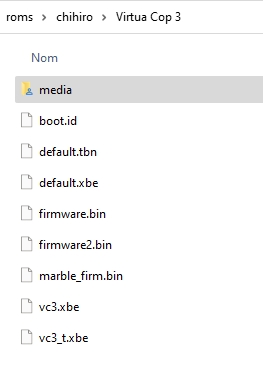
Chihiro roms come in the form of a folder containing multiple files including .xbe files.
The game folder must be placed in the \roms\chihiro folder.
Usually the .xbe file ending with t (e.g.vc3_t.xbe) is used to run the test menu.
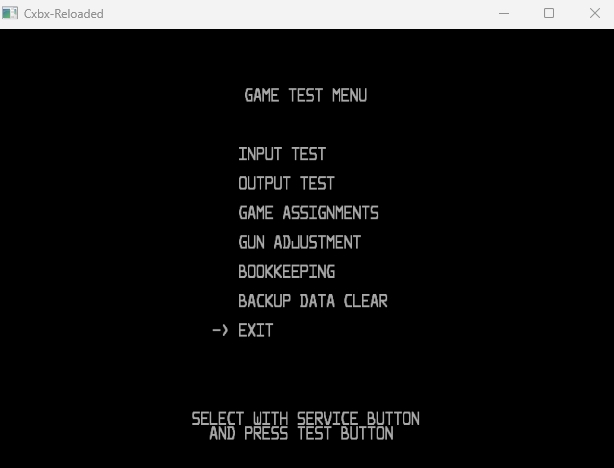
The Test menu contains options that can be adjusted within the game itself, such as aligning the crosshair for lightgun games and changing the difficulty.
Run the .xbe file ending with "t" to enter the test menu.
Download the Cerbios firmware and rename it 'Cerbios.bin', place it in the retrobat\bios folder.
In RetroBat advanced options for xemu, select the firmware:
Emulators
chihiro (old CXBX-Reloaded version)
chihiro-gun (chihiro-ds 1.0)
cxbx
xemu
File folder
📂 roms \ 📂 chihiro
File extension
.zip
NO
NO
YES
hikaru.zip
\bios
aac601811a25d7b31a3d5f3f1f82f338
mie.zip
\bios
e95415b161121bef35ade12367138c63
In construction : default RetroArch mapping.
No specific system information yet.
Emulators
demul
File folder
📂 roms \ 📂 hikaru
📂 roms \ 📂 gaelco
File extension
.zip
NO
NO
YES
Sega
Arcade - Released: 1998
Emulators
Libretro: flycast
flycast
demul
File folder
In construction : default RetroArch mapping.
Some NAOMI boards use just ZIP ROMs to run, but most others use a CHD files in addition to the .zip file.
CHD files must be placed in your rom folder, along the zip file, in a folder named exactly as the .zip file.
Some games have a per-game menu for accessing the machine's advanced configuration such as its dip switches, service mode and diagnostic input.
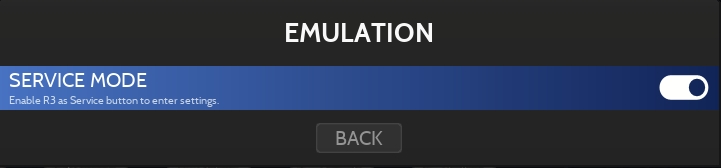
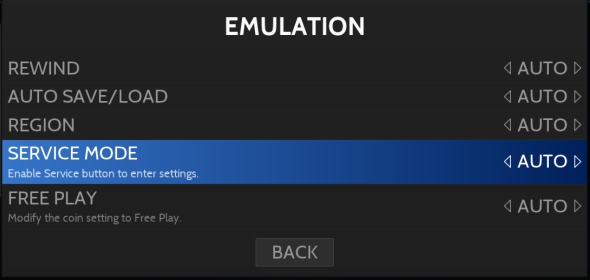
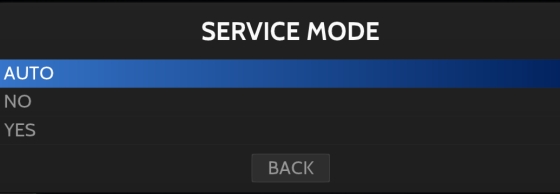
To access the service menu for NAOMI games, you need first to enable the Service Mode from the RetroBat advanced menu (set it to YES):
Once done, you will be able access the per-game Service Menu by pressing L3 + R3 buttons on the controller.
Sammy Corporation
Arcade - Released: 2003
Emulators
Libretro: flycast
flycast
demul
File folder
In construction : default RetroArch mapping.
Some games have a per-game menu for accessing the machine's advanced configuration such as its dip switches, service mode and diagnostic input.
To access the service menu for ATOMISWAVE games, you need first to enable the Service Mode from the RetroBat advanced menu (set it to YES):
Once done, you will be able access the per-game Service Menu by pressing L3 + R3 buttons on the controller.
MAME Team
HBMAME (HomeBrew MAME) is a derivative of MAME 0.245, and contains various hacks and homebrews.
Emulators
hbmame
Libretro: mame
Refer to the , HBMAME requires the same bioses as MAME.
Most Romsets for HBMame come in a "merged" presentation, meaning that the rom will contain the main game and the hack inside of the same zip file.
In order for RetroBat to see the Hack version, the rom will have to be "un-merged", here is an example for the "Arrange Ver. 1.1" hack for DoDonPachi:
Check that the rom you have is correct, this can be achieved by downloading the official HBMameUI software , placing the rom in the rom folder of the downloaded HBMame and auditing the set.
Place your rom in the \roms\hbmame folder of your RetroBat installation.
Open the rom archive and extract the hack you want to launch from RetroBat.
Here for example we will extract ddonpacha from the archive:
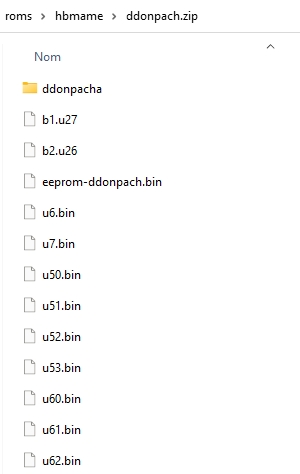
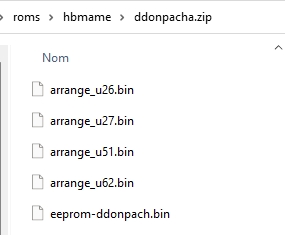
Now, go inside the extracted ddonpacha folder and zip the content, the zip name must be ddonpacha.zip (the official hack name):
The content of the zip should look as follows:
When zipping, ensure there is no ddonpacha subdirectory before the rom files !
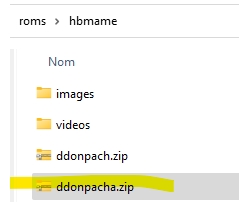
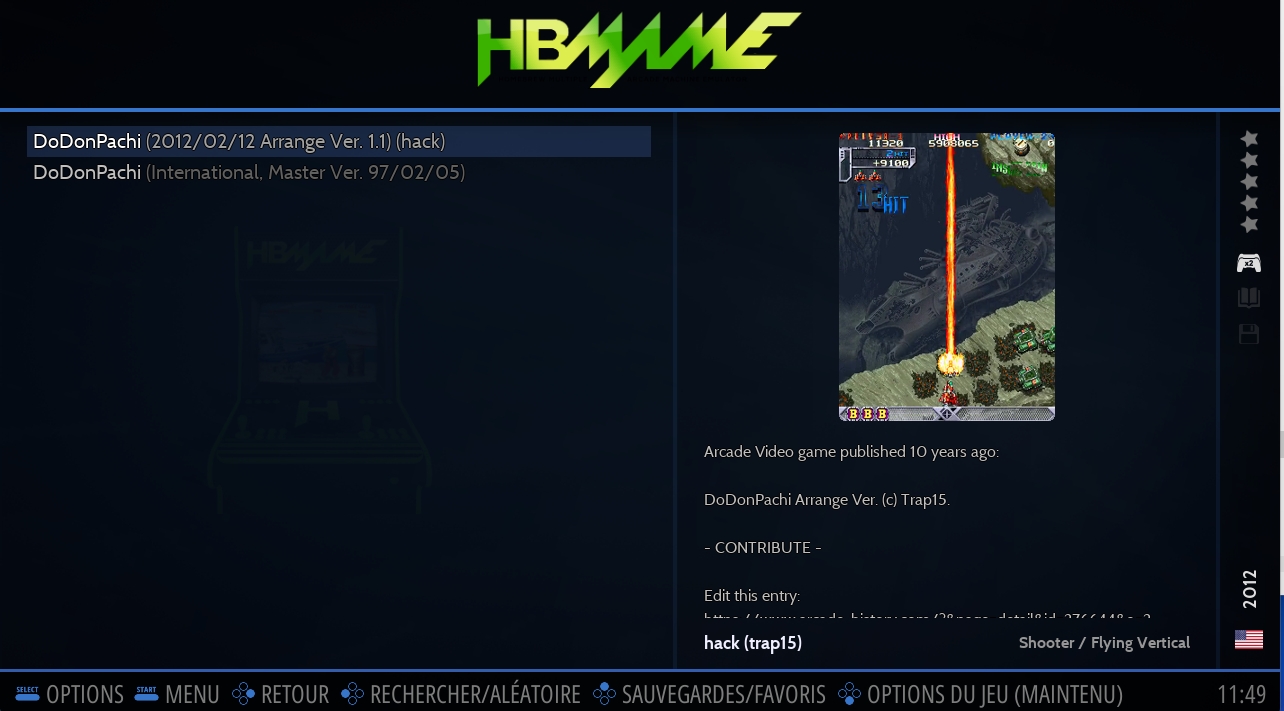
Now both roms will appear in RetroBat : the main one and the hack
And you will be able to run the hack rom with the emulators / cores provided in RetroBat:
Current ROM set : 0.245
Refer to the about CHD.
Refer to the .
Namco, Sega, Nintendo
Arcade - Released: 2002
Emulators
dolphin-triforce
teknoparrot
File folder
RetroBat uses the Crediar build of dolphin triforce.
No BIOS required for Triforce.
Controls are similar to Gamecube mapping for Dolphin.
You can create your own mapping directly in the dolphin-triforce emulator.
No specific information.
Namco
Namco
Playstation-based hardware arcade games emulator
Emulators
play
teknoparrot
File folder
The list of compatible games can be found in the following folder: \emulators\play\arcadedefs
Do not rename zip files, the name of the file must be exactly the name expected by the emulator.
No BIOS required.
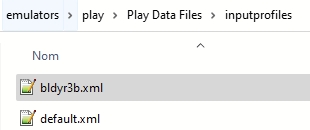
You can create your own .xml input profile file (for each game) and name it like the game file, RetroBat will then automatically load the file when loading the game.
Input profiles are stored in the following folder: \emulators\play\Play Data Files\inputprofiles:
For games without a .zip file, create a .m3u file named after the arcade profile name.
Arcade profile names can be found in the emulators\play\arcadedefs folder.
A
B
Y
LT (L2)
L
RT (R2)
R
R3 (Thumbstick press)
Z (test menu)
📂 roms \ 📂 triforce
File extension
.iso .zip .cue .7z
NO
NO
YES
START
START
SELECT
X
D-PAD
D-PAD
Left analog stick
Left analog stick
Right analog stick
C-Stick


📂 roms \ 📂 naomi
File extension
.bin .dat .lst .zip .7z
lr-flycast: YES Flycast: YES Demul: NO
NO
lr-flycast: YES Flycast: YES Demul: YES
naomi.zip
\bios\dc
eb4099aeb42ef089cfe94f8fe95e51f6


📂 roms \ 📂 atomiswave
File extension
.bin .lst .zip .7z
lr-flycast: YES Flycast: YES Demul: NO
NO
lr-flycast: YES Flycast: YES Demul: YES
awbios.zip
\bios\dc
0ec5ae5b5a5c4959fa8b43fcf8687f7c


File folder
📂 roms \ 📂 hbmame
File extension
.zip .7z

📂 roms \ 📂 namco3xx
File extension
.game
NO
NO
YES (through yml file)
📂 roms \ 📂 neogeo64
File extension
.zip .7z
hng64.zip
\bios

📂 roms \ 📂 namco2x6
File extension
.zip .m3u
NO
NO
YES


Capcom
Arcade - Lifespan: 1988 - 1995
Emulators
Libretro: fbneo
Libretro: fbalpha2012_cps1
Libretro: fbalpha
Libretro: fbalpha2012
File folder
No BIOS necessary for CPS systems.
Mapping can be found in the .
For FBNEO and FBALPHA cores, 2 controller layouts are available:
CLASSIC
MODERN
There is no specific System information documented here yet.
Capcom
Arcade - Lifespan: 1993 - 2003
Emulators
Libretro: fbneo
Libretro: fbalpha2012_cps2
Libretro: fbalpha
Libretro: fbalpha2012
File folder
No BIOS necessary for CPS systems.
Mapping can be found in the .
For FBNEO and FBALPHA cores, 2 controller layouts are available:
CLASSIC
MODERN
There is no specific System information documented here yet.
Cave
Arcade
List of CAVE games:
Emulators
Libretro: fbneo
Libretro: fbalpha
Libretro: fbalpha2012
Libretro: mame2003_plus
No BIOS required to play CAVE games.
Mapping can be found in the .
No specific system information.
Discrete Integrated Circuit Emulator
Arcade
List of Dice games:
Emulators
No BIOS required to play DICE games.
Mapping can be found in the .
Some games use zipped ROMs and launch similarly to MAME or FBNeo --- filename is important, .
Some games (pong, breakout, pinpong, etc) do not have any ROM on the board at all. For these, copy the dummy launcher file from to your ROM folder.
TeknoGods
PC-based arcade games emulator
Emulators
teknoparrot
File folder
No BIOS required.
Controls are automatically configured since RetroBat version 7.0.0.0 for gamepads and guns.
The file teknoparrot.yml located in system\resources\inputmapping is the file providing the default mapping for each game, it can be updated if you need a different mapping for a game.
Example for spiderman:
Gun games can have 2 mappings, one to play with the gamepad and one for using mouse/lightgun:
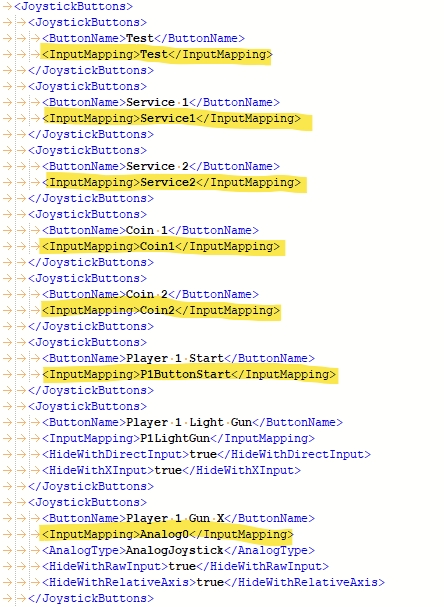
The id to use for the controls can be found in the game profile file in emulators\teknoparrot\GameProfiles folder:
The list of compatible games can be found .
To add Teknoparrot games, you must first download the Teknoparrot "emulator" from its official website (and not elsewhere):
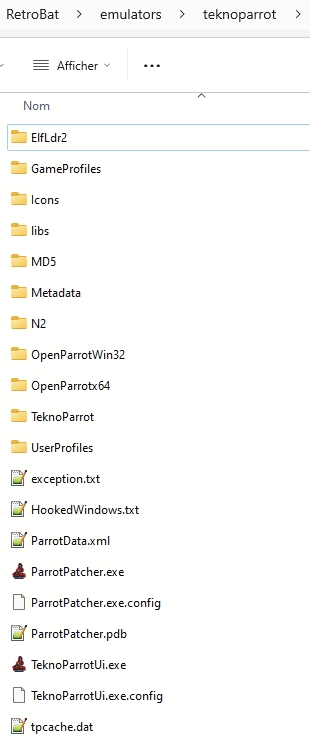
Then, unzip the file you just downloaded in \emulators\teknoparrot:
Your antivirus will surely panic, keep cool, these are false positives, so make sure that your antivirus authorizes the detected files.
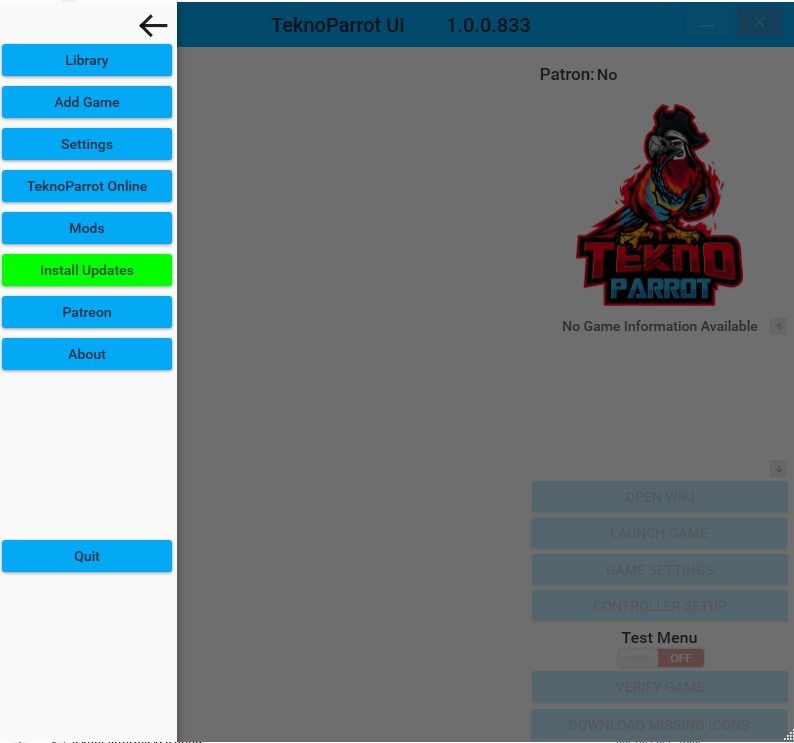
Launch the TeknoParrotUi.exe for the first time, it will most certainly ask for several updates: do them, all.
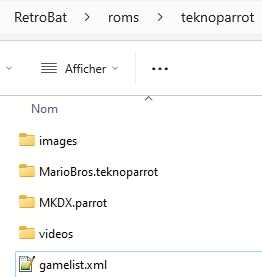
Place your Teknoparrot games in \roms\teknoparrot
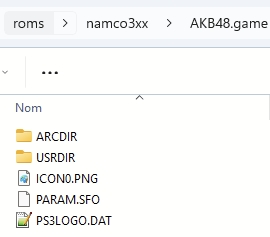
The folders name of your Teknoparrot games must be renamed to .teknoparrot .parrot or .game
For example, the game folder of Mario Kart: Arcade GP DX must be renamed:
MKDX.teknoparrot,
or MKDX.parrot
or MKDX.game
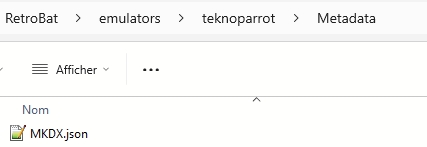
Important detail, the folders name must correspond to the name of the json file for the game in the Teknoparrot "Metadata" folder located in \emulators\teknoparrot\Metadata
roms\
└─ naomi\
   ├─ ikaruga\
   │  └─ gdl-0010.chd
   └─ ikaruga.zip
D-PAD
Stick
Stick
3
3
1
1
2
2
4
4
L1
5
R1
6
5
L2
R2
6
L3
R3
📂 roms \ 📂 cps1
File extension
.fba .zip .7z
START
START
START
SELECT
COIN
COIN
Left analog stick
Stick
Stick

Right analog stick

D-PAD
Stick
Stick
3
3
1
1
2
2
4
4
L1
5
R1
6
5
L2
R2
6
L3
R3
📂 roms \ 📂 cps2
File extension
.fba .zip .7z
START
START
START
SELECT
COIN
COIN
Left analog stick
Stick
Stick
Right analog stick

3
1
2
4
L1
5
R1
6
L2
R2
L3
R3
Libretro: mame2016
Libretro: mame
mame64
demul
File folder
📂 roms \ 📂 cave
File extension
.fba .zip .7z
START
START
SELECT
COIN
Left analog stick
Stick
Right analog stick
D-PAD
Stick

3
1
2
L1
Dollar
R1
L2
R2
L3
R3
Libretro: DICE
File folder
📂 roms \ 📂 dice
File extension
.zip .dmy
lr-dice : NO
lr-dice : NO
lr-dice : YES
START
START
SELECT
COIN
Left analog stick
Stick
Right analog stick
D-PAD
Stick

File extension
.zip .7z
lr-flycast: YES Flycast: YES Demul: NO
NO
lr-flycast: YES Flycast: YES Demul: YES
naomi2.zip
\bios\dc
See below
In construction : default RetroArch mapping.
Some NAOMI2 boards use just ZIP ROMs to run, but most others use a CHD files in addition to the .zip file.
CHD files must be placed in your rom folder, along the zip file, in a folder named exactly as the .zip file.
Some games have a per-game menu for accessing the machine's advanced configuration such as its dip switches, service mode and diagnostic input.
To access the service menu for NAOMI2 games, you need first to enable the Service Mode from the RetroBat advanced menu (set it to YES):
Once done, you will be able access the per-game Service Menu by pressing L3 + R3 buttons on the controller.
Emulators
Libretro: flycast
flycast
demul
File folder
📂 roms \ 📂 naomi2
📂 roms \ 📂 teknoparrot
File extension
.teknoparrot .parrot .game .7z .zip .rar


Capcom
Arcade - Released: 1996
Emulators
Libretro: fbneo
Libretro: fbalpha2012_cps3
Libretro: fbalpha
Libretro: fbalpha2012
File folder
No BIOS necessary for CPS systems.
Mapping can be found in the .
For FBNEO and FBALPHA cores, 2 controller layouts are available:
CLASSIC
MODERN
There is no specific System information documented here yet.
Sega
naomi2.zip
- 315-6146.bin "728bfe038ce280872057e365ebfc0fee"
- 315-6215.bin "baf83367044924067e09856ba164aa6f"
- epr-23605.ic27 "6f8ad6e3ab04c8ae1cbcaa652b91cf4e"
- epr-23605a.ic27 "f3f39513484df216d9979f6ae7577942"
- epr-23605b.ic27 "ab046e62c51d67fb89eade2b8d5f6a8d"
- epr-23605c.ic27 "096a5217ff6e6c6cafe65a03336760ab"
- epr-23605c_multi.ic27 "659d579ba9aef5b025d87323044e83f4"
- epr-23607.ic27 "cbe0984d03d73869c23da5a3dd2ce207"
- epr-23607b.ic27 "b624ec7b3b90fdf3be103cdfb1679d1d"
- epr-23607c.ic27 "a9d82db14b823a5a57885bea1a998eb7"
- epr-23608.ic27 "3b1315be24dc8d17f4fa18f3bfc5fe5c"
- epr-23608a.ic27 "0143cf852cb2a8a41f217bc688f62105"
- epr-23608b.ic27 "8b88c1f5a06e9b560e887c3b9f879237"
- epr-23608c.ic27 "b49702e4fadb3b5f9143a3d20afd04b5"
- epr-23609b.ic27 "ecadb008179ca1e6f4fe3fa091ab5df2"
- main_eeprom.bin "edeed38a9795e062a9af28c3eba22040"
- sp5001.bin "14e6bffff0d4dff6a5a547e7c43680ff"
- sp5001-a.bin "689d2228b00fb59781f82af6e8ecdb78"
- sp5001-b.bin "8373a11106c1c2fc21ac839f75ea488f"
- sp5002-a.bin "7eecfb8e8f82b47ffab92a0c5528100e"
- x76f100_eeprom.bin "960ece0dc22a7c5ff81c812a2993e7cc"roms\
└─ naomi\
├─ vtennis2\
│ └─ gds-0015a.chd
└─ vtennis2.zipspiderman:
Coin1: select # P2 COINS
P1Button6: leftshoulder # P1 COINS
P1ButtonStart: start # P1 START / ACTION
P2ButtonStart: start # P2 START / ACTION
Service1: r3 # Test Select
Test: l3 # Test Menuhotd4:
Analog0: rightstickleft # Player 1 Gun X
Analog2: rightstickup # Player 1 Gun Y
Analog4: rightstickleft # Player 2 Gun X
Analog6: rightstickup # Player 2 Gun Y
Coin1: select # Coin 1
Coin2: select # Coin 2
P1Button1: righttrigger # Player 1 Gun Trigger
P1Button2: lefttrigger # Player 1 Reload
P1Button3: leftshoulder # Player 1 Grenade
P1ButtonStart: start # Player 1 Start
P2Button1: righttrigger # Player 2 Gun Trigger
P2Button2: lefttrigger # Player 2 Reload
P2Button3: leftshoulder # Player 2 Grenade
P2ButtonStart: start # Player 2 Start
Service1: r3 # Service 1
Test: l3 # Test
hotd4_gun:
Coin1: kb_5 # Coin 1
Coin2: kb_6 # Coin 2
mouseleft_1: P1Button1 # P1 Left Trigger
mouseleft_2: P2Button1 # P2 Left Trigger
mousemiddle_1: P1Button3 # P1 Grenades
mousemiddle_2: P2Button3 # P2 Grenades
mouseright_1: P1Button2 # P1 Right Trigger
mouseright_2: P2Button2 # P2 Right Trigger
P1ButtonStart: kb_1 # P1 Start
P2ButtonStart: kb_2 # P2 Start
Service1: kb_S # Service
Test: kb_T # TestD-PAD
Stick
Stick
3
3
1
1
2
2
4
4
L1
5
R1
6
5
L2
R2
6
L3
R3
📂 roms \ 📂 cps3
File extension
.fba .zip .7z
START
START
START
SELECT
COIN
COIN
Left analog stick
Stick
Stick
Right analog stick

SHA-256: 3e6f91506031badc4ebdf7fe5b4f33180222a369b575522861688d3b27322a68
SELECT
Coin
START
Start
L2
Test
R2
Service
L3
Pause
Libretro: mame2010
Libretro: mame2003_plus
Libretro: mame2003
Mednafen
Mame64
File folder
📂 roms \ 📂 segastv
File extension
.zip
NO
NO
YES
stvbios.zip
\bios\kronos
epr-17740.ic8 epr-17740a.ic8 epr-17741a.ic8 epr-17742a.ic8 epr-17951a.ic8 epr-17952a.ic8 epr-17953a.ic8 epr-17954a.ic8 epr-19730.ic8 epr-19854.ic8 epr-20091.ic8 stv110.bin stv1061.bin stvbios.nv
epr-20091.ic8
\bios
SHA-256: ac778ec04aaa4df296d30743536da3de31281f8ae5c94d7be433dcc84e25d85b
epr-17952a.ic8
\bios
SHA-256: bac5a52794cf424271f073df228e0b0eb042dede6a3b829eb49abf155e7e0137
epr-17954a.ic8
D-PAD
Directions
Button 1
Button 2
Button 4
Button 3
\bios


Playstation hardware arcade games emulator
Emulators
PSXMame
Zinc
libretro:mame
MAME
No BIOS required.
There are 2 ways to configure Zinc controls with zinc emulator.
Select option "DYNAMIC" in the advanced system settings to enable automatic configuration (CONTROLS submenu).
3 profiles are available :
Street Fighter
Soul Edge
Tekken
Select option "PRE-DEFINED" in the advanced system settings to enable automatic configuration (CONTROLS submenu).
A profile .cfg file can be created for each individual game, to do so, you can either modify the existing profile file for the game or delete it and create a new file (files are located in the \emulators\zinc\cfg folder)
Ensure the .cfg file name starts with the game ID.
RetroBat automatically uses the first .cfg file found for which the name starts with the game ID.
Zinc emulator does not support the d-pad, only axis are recognized on modern gamepads.
PSXMame and Zinc emulator do not use the same ROMset, games working fine with Zinc might not work with PSXMame and vice-versa.
The list of compatible games can be found .
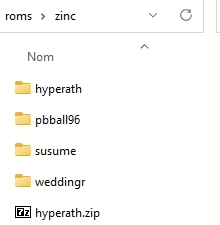
DO NOT UNZIP or RENAME the game files.
Some games require CHD files, these must be placed in a subfolder that has the same name as the gamezip:
Zinc emulator is only compatible with the following roms, the name must match exactly the list:
MAME Team
Multi-Arcade Emulator - Release year: 1997
Emulators
Libretro: mame
Libretro: mame2016
Libretro: mame2010
Libretro: mame2003_plus
File folder
📂 roms \ 📂 mame
Depending on the , a BIOS can be required or not to play some games:
Full non-merged: the BIOS is included in the ROM file, so no BIOS file will be needed
Non-merged: same as "Full non-merged" but BIOS that are shared by multiple games are placed outside of the individual ROMs
Split: BIOS files are required
Here is a non-exhaustive list of MAME bios files (based on rom set 0.255):
BIOS files must be placed at the root of the \bios folder of your RetroBat installation.
Rompath: \bios & \roms\mame
Samples: \bios\mame\samples
Cfg: \saves\mame\cfg
Ini: \bios\mame\ini
Hash: \bios\mame\hash
Artworks: \saves\mame\artwork
Cheats: \cheats\mame
Ctrl: \saves\mame\ctrlr
Refer to the .
Refer to the about CHD.
Refer to the .
Press L3 and R3 buttons to access to service menu.
Libretro:Mame has a limitation in the length of the paths it uses when launching a game through command lines. This limitation does not exist with standalone Mame.
In order to be able to fix this issue, ensure that your RetroBat folder path does is not installed in a path that is too long.
For example the path C:\Emulation\Multi Emulators\FrontEnd\All-in-one\This is top\RetroBat version 6.3 is too long and will result in the issue.
Button 4
Button 1
Button 2
Button 3
L1
Button 5
R1
Button 6
L2
R2
L3 + R3
Service Menu (player 1 only)
· sfexpa
· plsmaswd
· stargld
· rvschola
· jgakuen
· rvschool
· shiryu
· strider
· kikaioh
· techromn
· ts
· tsj
· tgmj
· sncwgltd
· beastrzb
· beastrzr
· bldyror
· brvblade
· psyforcj
· psyforce
· psyfrcex
· mgcldtex
· raystorj
· raystorm
· ftimpcta
· gdarius
· gdarius
· danceyes
· xevidg
· starswep
· myangel
· tekkenb
· tekkena
· tekken
· tekkena
· tekkenb
· tekken
· souledga
· souledgb
· souledge
· dunkmnia
· dunkmnic
· primglex
· weddingr
· hyperath
· pbball
· susume
· fgtlayer
· ehrgeiz
· tekken
· mrdrillr
· aquarush
· pacapp
· glpracr
· shngmtkb
· cbaj
· doapp
· tondemo
· mfjump
· hvnsgate
File folder
📂 roms \ 📂 zinc
File extension
.zip
NO
NO
YES
START
Start
SELECT
Select / COIN
D-PAD
D-PAD
Left analog stick
Joystick Left
Right analog stick
Joystick Right
3
1
2
4
L1
5
R1
6
L2
Pedal 2 / 7
R2
Pedal 1 / 8
L3
9
R3
10
Libretro: mame2003
Libretro: mame2003_midway
Libretro: mame2000
mame64
File extension
.zip .7z
NO
NO
lr-mame: NO Mame64: YES
START
START
SELECT
COIN
Left analog stick
Left Joystick Paddle Positional device Dial Trackball Ad_Stick
Right analog stick
Right Joystick
D-PAD
Directions



Arcade - First LaserDisc game release : 1983
Emulators
hypseus
daphne
singe2
Games Location
No BIOS required to play DAPHNE or SINGE games.
Daphne games consist of 2 parts
a folder containing the videos, *.dat and *.txt files of the games
a .zip file in the roms folder
To add Daphne games, your games folders must be placed in "\roms\daphne" folder by adding .daphne at the end.
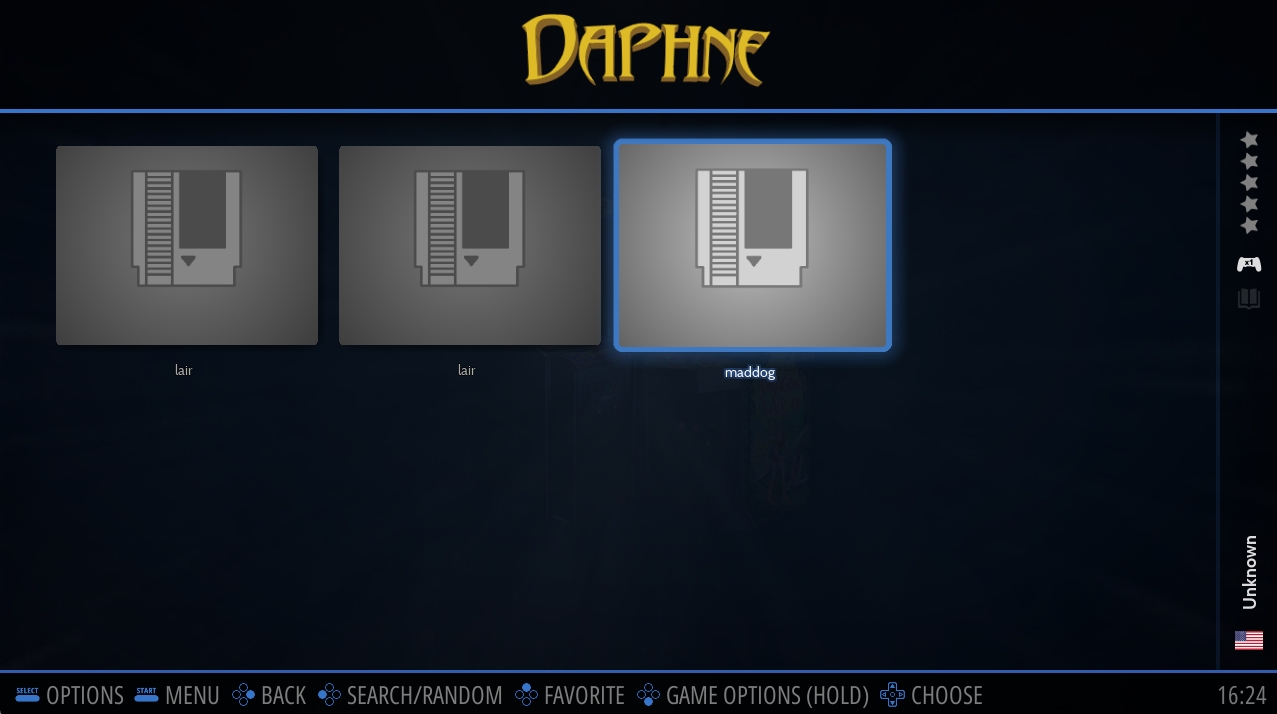
For example, your game folder "lair" (Dragon's Lair) must be renamed to lair.daphne
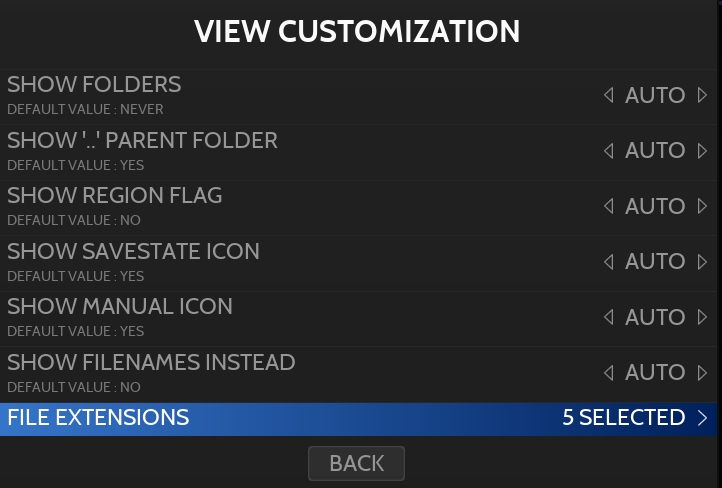
Once the game added, it is listed twice in Retrobat, as both the zip and the .daphne folder are detected.
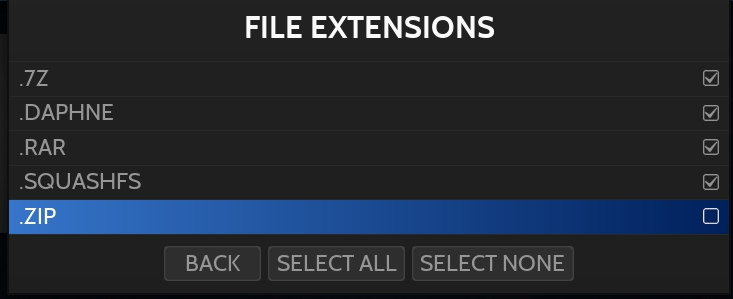
You can use use the to hide the .zip extension for the system by pressing SELECT
Navigate to and FILE EXTENSIONS
Untick .zip extension
SINGE games include the famous AMERICAN LASER GAMES and a few other titles.
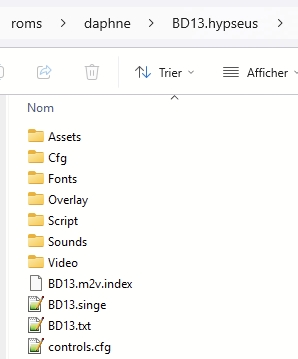
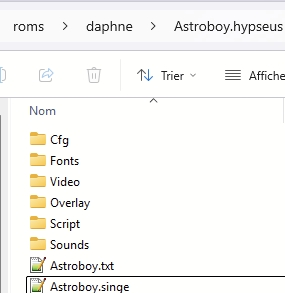
The process is similar as for Daphne games but there is no zip file to place in the roms folder and the folder extension must be .hypseus. In addition, 2 files need to be present in your <game>.hypseus folder:
<game>.singe
<game>.txt
The structure of the game folder should look like this:
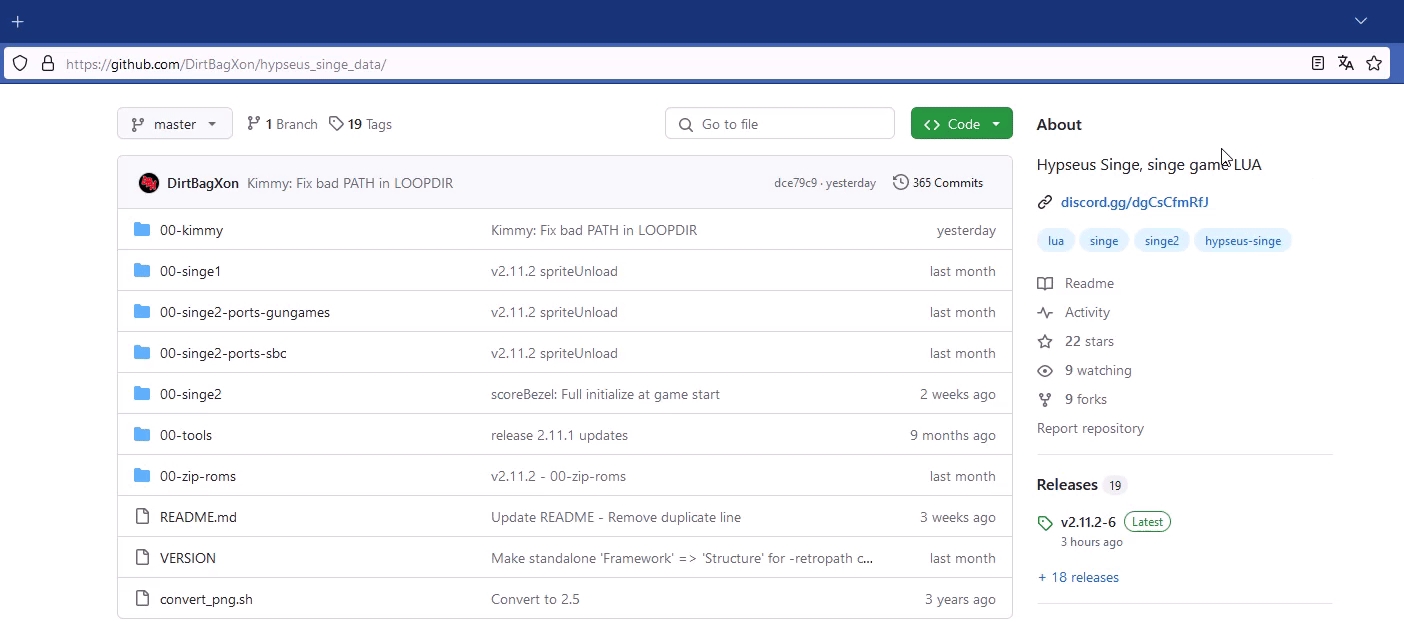
To make things easier, you can use the assets available on the Hypseus Github.
At first, download the content of the repository above,
and extract the zip on a temporary folder.
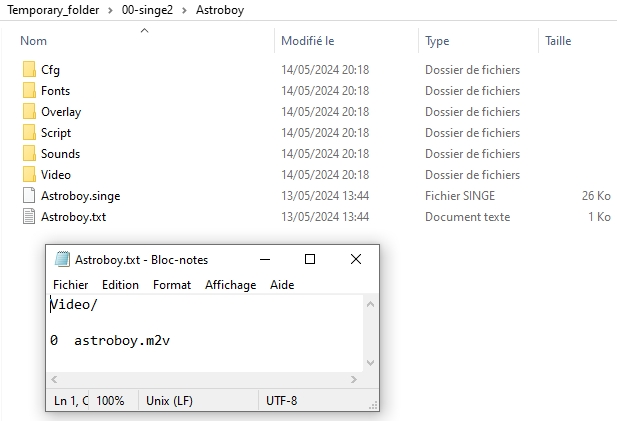
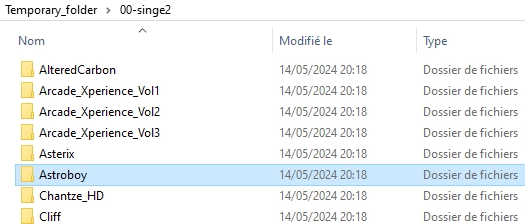
For the exemple, we will use the game Astroboy, in 00-singe2 sub-folder :
Inside the game folder, you will find a text file that contain the information about which file is missing, and where it have to be place. In this exemple, you have to place the file astroboy.m2v in the folder Video.
After adding the required files (could be .m2v file, or .ogg and .m2v files), you must rename your folder by adding .daphne at the end of the folder name (in our exemple : Astroboy.hypseus) and move this folder to the /roms/daphne/ folder
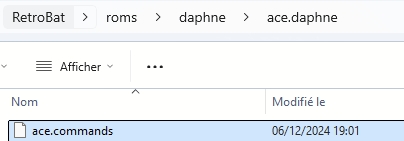
It is possible to use a custom command file to force command line to hypseus emulator, to do so, create a text file in the rom folder and add all command lines required within the file:
Finally: rename the file with the .commands extension, the name of the file must match exactly the name of the game folder (without the .singe or .daphne extension).
Singe2 emulator does not support games in the same format as hypseus format.
Only games listed on the emulator webpage can be used:
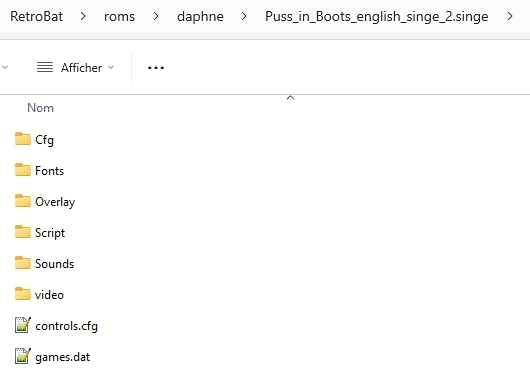
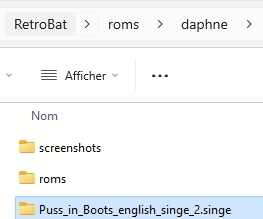
You can download these games, add the video/sound files required, and rename the folder with a .singe extension to use these games with the SINGE2 emulator:
It is very important to KEEP the game folder name as downloaded from the website !

Button 3
R1 (RIGHT SHOULDER)
Skill 1
Y (WEST)
Skill 2
X (NORTH)
Skill 3
L1 (LEFT SHOULDER)
SERVICE
L3 (LEFT STICK)
TEST
R3 (RIGHT STICK)
1
1
START 2
2
2
Button 1
LEFT CONTROL
LEFT CTRL or SPACE
Button 2
LEFT ALT
LEFT ALT
Button 3
SPACE
LEFT SHIFT
Skill 1
LEFT SHIFT
/
Skill 2
Z
*
Skill 3
X
-
SERVICE
9
9
TEST
F2
F2
RESET
0
F3
Screenshot
F12
F12
Quit
ESC
ESC or q
Pause
P
P
Console
BACKLASH
Title
T
t
📁 roms \ 📂 daphne
File extensions
.daphne .hypseus .7z .rar .squashfs
NO
NO
hypseus: YES daphne: NO singe2: YES
Directional movement
D-PAD or Left analog stick
COIN 1
SELECT
START 1
START
Button 1
A (SOUTH)
Button 2
B (EAST)
Directional movement
ARROW Keys
ARROW Keys or 8,4,2,6
COIN 1
5
5 or c
COIN 2
6
6

START 1

File extension
.fba .zip .chd .7z .bin
libretro: YES FBNEO: NO
libretro: YES FBNEO: NO
Althrough no BIOS file is necessary for most of the games, some systems emulated by fbneo do require BIOS files.
neogeo.zip
\bios
Neo Geo BIOS
pgm.zip
\bios
PGM System BIOS
skns.zip
\bios
Super Kaneko Nova System BIOS
Roms: \roms\fbneo
Bios: \bios or \bios
Samples: \bios\fbneo\samples
Hiscore.dat: \bios\fbneo
Cheats: \bios\fbneo\cheats
Blend files: \saves\fbneo\blend
Mapping can be found in the notice.
For FBNEO and FBALPHA cores, 2 controller layouts are available:
CLASSIC
MODERN
START
START
START
SELECT
COIN
COIN
Left analog stick
Stick
Stick
RetroBat offers per-game fonctionnality for FBNEO standalone emulator.
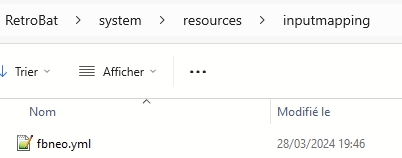
The file containing the mapping information is available in the \system\resources\inputmapping folder of your RetroBat installation, it is named fbneo.yml
An explanation of how to perform the mapping is available as introduction comment within the file.
Here is an example of mapping provided for Street Fighter III games:
The yml section for a game is structured with the following information:
game name
Must be the name (or beginning of the name) of the game zip file (e.g. sfiii will cover all roms starting with sfiii unless a specific mapping section has been created for the exact game file name)
Game control label
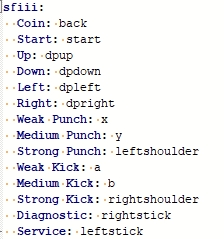
Each game has different control name labels. These can be found in the game config .ini file created in the \emulators\fbneo\config\games folder of your RetroBat installation.
Here is an example for sfiii3.ini:
The control names to specify within RetroBat .yml file is the input label without the player ID : for example Weak Punch
Gamepad button
The gamepad button value needs to be the button for which to assign the control on your gamepad.
The following values are available:
These button names refer to the gamecontrolledb.txt official names, as reported in the file located in the file located in the \system\tools folder of your RetroBat installation.
Refer to the Arcade Guide rom set section.
Refer to the Arcade Guide section about CHD.
Refer to the Arcade Guide "sample file" section.
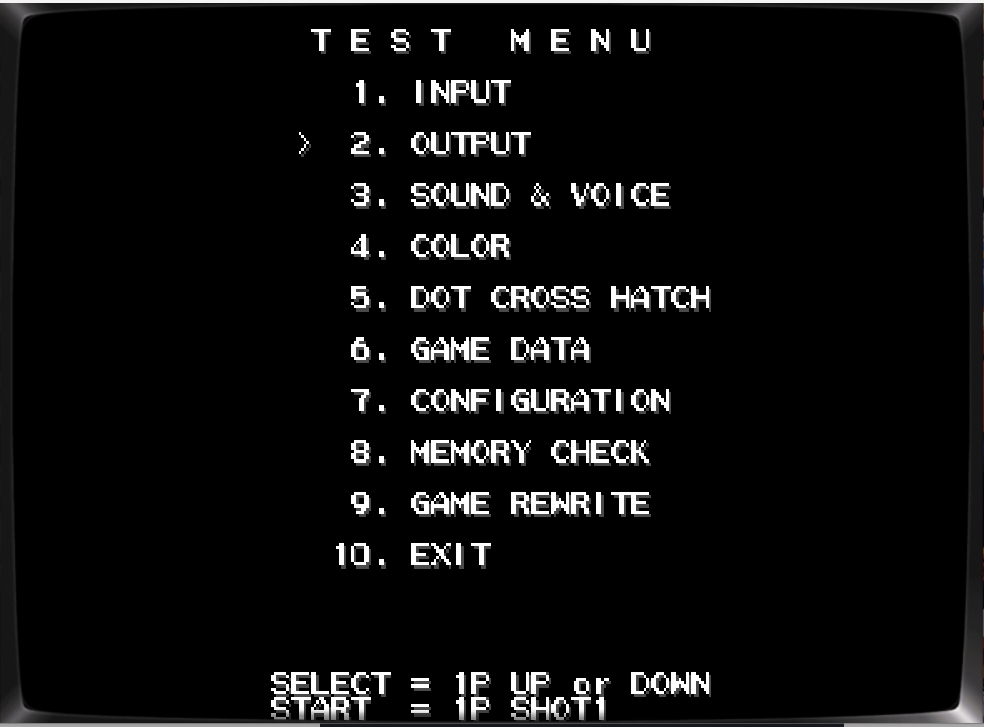
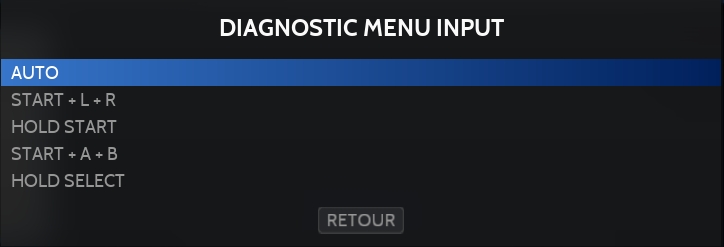
The diagnostic menu can be accessed by pressing START + L1 + R1 (default setting).
The button key can be changed in the advanced system options:
While in game, press the button combination to access the diagnostic menu:
Dip Switches allow to change game specific settings, for example difficulty, autofire, free-to-play...
They may differ game by game.
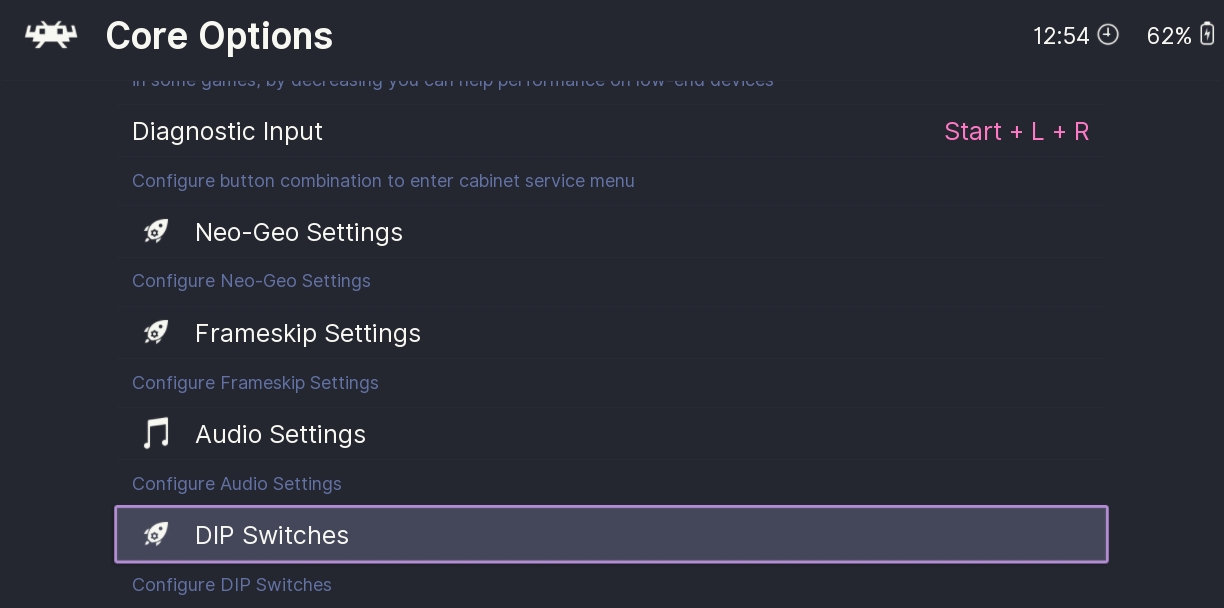
The dip switches can be accessed from the RetroArch quick menu, while in game, press SELECT +
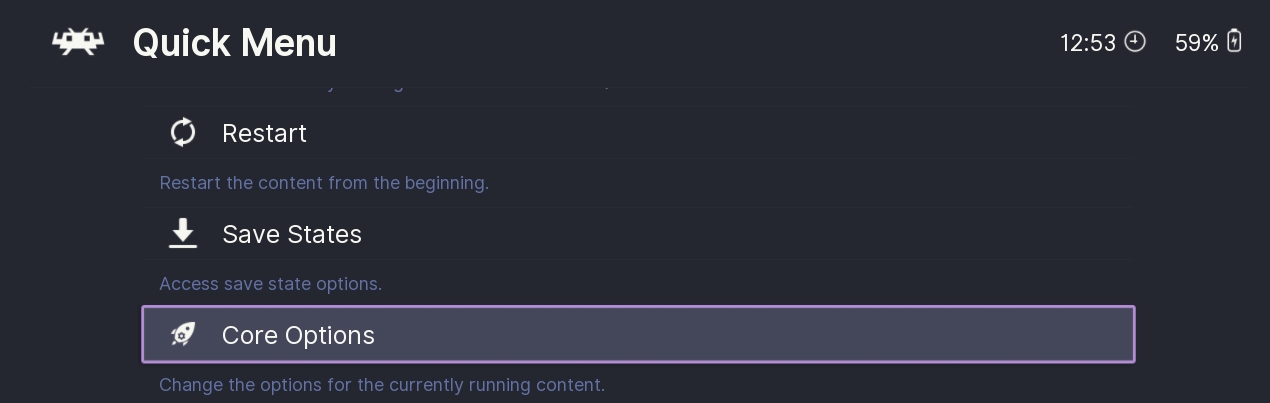
Go to CORE OPTIONS:
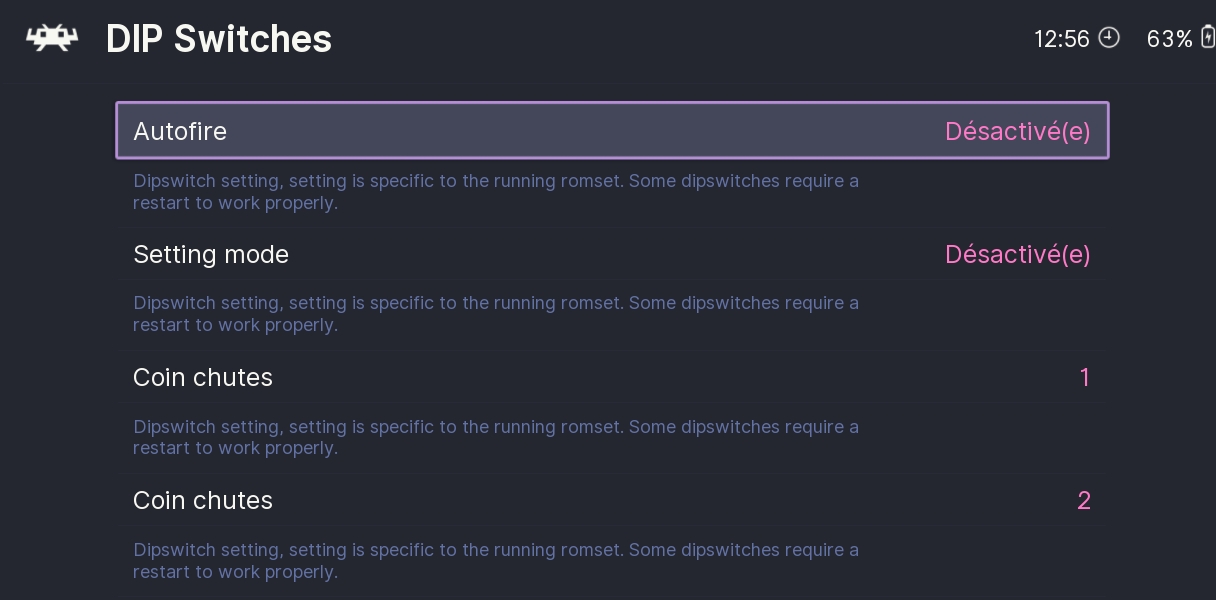
Then select DIP SWITCHES:
The list of options available for the game are displayed:
Emulators
Libretro: fbneo
Libretro: fbalpha
Libretro: fbalpha2012
Libretro: fbalpha2012_neogeo
FBNeo
File folder
📂 roms \ 📂 fbneo
roms\
└─ daphne\
   ├─ roms\
   │  └─ lair.zip
   └─ lair.daphne\
      └─ lair.dat
      └─ lair.m2v
      └─ lair.ogg
      └─ lair.txt
neocdz.zip
\bios
Neo Geo CD BIOS
decocass.zip
\bios
DECO Cassette System BIOS
isgsm.zip
\bios
ISG Selection Master Type 2006 System BIOS
midssio.zip
\bios
Midway SSIO Sound Board Internal ROM
nmk004.zip
\bios
NMK004 Internal ROM
ym2608.zip
\bios
YM2608 Internal ROM
cchip.zip
\bios
C-Chip Internal ROM
bubsys.zip
\bios
Bubble System BIOS
namcoc69.zip
\bios
Namco C69 BIOS
namcoc70.zip
\bios
Namco C70 BIOS
namcoc75.zip
\bios
Namco C75 BIOS
coleco.zip
\bios
ColecoVision System BIOS
fdsbios.zip
\bios
FDS System BIOS
msx.zip
\bios
MSX1 System BIOS
ngp.zip
\bios
NeoGeo Pocket BIOS
spectrum.zip
\bios
ZX Spectrum BIOS
spec128.zip
\bios
ZX Spectrum 128 BIOS
spec1282a.zip
\bios
ZX Spectrum 128 +2a BIOS
channelf.zip
\bios
Fairchild Channel F BIOS
Right analog stick
D-PAD
Stick
Stick
3
3
1
1
2
2
4
4
L1
5
R1
6
5
L2
R2
6
L3
R3



Sega
Arcade - Released: 1994
Emulators
model2emu
libretro:mame
MAME
File folder
No BIOS required for Model 2.
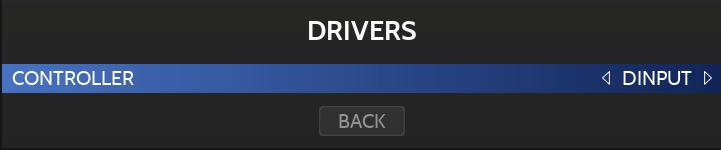
By default, RetroBat forces the emulator to use the XINPUT driver, however, if you are using a controller that is not compatible with the XInput protocol, you will need to select the DINPUT driver in the advanced options of the system:
Here are the default controls generated by RetroBat for each game.
List of games: Behind Enemy Lines, Gunblade NY, House of the Dead, Rail Chase, Virtua Cop, Virtua Cop 2.
List of games: Dead or Alive, Fighting Vipers, Last Bronx, Sonic Championship, Virtua Fighter 2.
List of games: Daytona USA, Indianapolis 500, ManxTT Superbike, Motor Raid, Over Rev, Sega Rally, Sega Touring Car Championship, Super GT 24H.
List of games: Dynamite Cop, Pilot Kids, Virtua Striker, Zero Gunner.
Desert Tank:
Dynamite Baseball 97:
Sega Water Ski:
Sega Ski Super G:
Sky Target:
Top Skater:
Virtual On Cybertroopers:
Wave Runner:
The Service menu contains options that can be adjusted within the game itself, such as aligning the crosshair for lightgun games and changing the difficulty.
The service menu can be accessed either by keyboard or with the right stick button (R3) of your controller, based on the option in the service menu:
Turn the option ON to use controller (R3 to enter service menu and L3 to navigate).
Leave this option OFF to use keyboard (F2 to enter service menu and F1 to navigate).
Model 2 lightgun games require per-game calibration.
While in game, navigate the Test menu to the GUN SETTINGS option to perform the calibration.
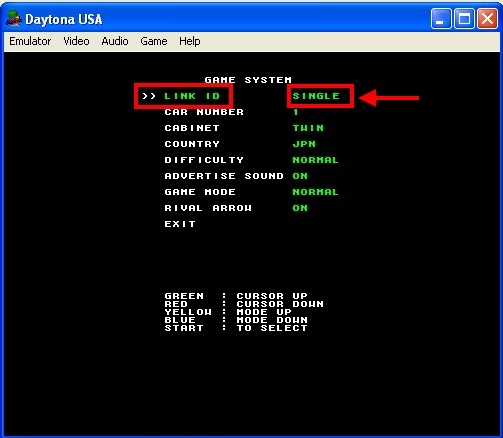
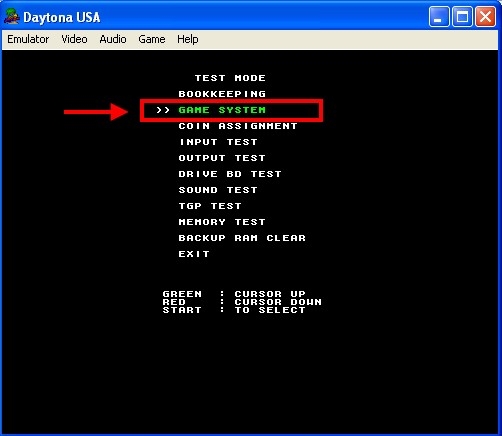
If you receive the error “Network Board Not Present”, go to the service menu and navigate to Games System → Link ID and change the option to Single.
Reload / Missiles / Right Trigger
Mouse Right
all: PUNCH
all: KICK doa: N/A
R1
Motoraid: punch
L1
VIEW CHANGE manxtt: N/A srallyc: N/A daytona: VR4 / GREEN
SHIFT UP srallyc: N/A daytona: VR3 / YELLOW
SHIFT LEVER (Daytona USA & Sega Rally)
Right Analog Stick UP: 1st DOWN: 2nd LEFT: 3rd RIGHT: 4th When using wheel without gear-stick: DPAD
VIEW CHANGE manxtt: N/A overrev: N/A daytona: VR1 / RED
SHIFT DOWN srallyc: N/A daytona: VR2 / BLUE
vstriker: SHORT PASS zerogun: SHOOT dynamcop: PUNCH pltkids: SHOOT
vstriker: N/A zerogun: N/A dynamcop: KICK pltkids: N/A
COIN
SELECT
START
START
VR2 / GREEN
VR3 / RED
VR1 / BLUE
THROW BALL
SELECT 3
SELECT 1
VIEW CHANGE
SELECT RIGHT
SELECT LEFT
NOLLIE
START
RIGHT TURBO
LEFT TURBO
VIEW CHANGE
📂 roms \ 📂 model2
File extension
.zip
NO
NO
YES
P1 START
Keyboard 1
P2 START
Keyboard 2
P1 CREDIT
Keyboard 3
P2 CREDIT
Keyboard 4
Shoot / Left Trigger / Machine Gun
Mouse Left
MOVE
D-PAD
START
START
COIN
SELECT
all: GUARD doa: KICK
doa: HOLD
TURN (Steering)
Left analog stick
START
START
COIN
SELECT
BRAKE
Left Trigger (L2)
ACCELERATE
Right Trigger (R2)
MOVE
Left analog stick
START
START
COIN
SELECT
vstriker: LONG PASS zerogun: BOMB dynamcop: JUMP pltkids: LOCK-ON
vstriker: SHOOT zerogun: N/A dynamcop: N/A pltkids: N/A
Accelerate / Reverse
Left analog stick UP
REVERSE MODE
Left Trigger (L2)
CANNON
Right Trigger (R2)
MACHINE GUN
Right Shoulder (R1)
TURRET / TURN
Right Analog Stick
MOVE
Left analog stick
BAT / PITCH
Right Trigger (R2)
COIN
SELECT
START
START
HOLD
STEERING
Left analog stick
LEFT FOOT PEDAL
Left Trigger (L2)
RIGHT FOOT PEDAL
Right Trigger (R2)
COIN
SELECT
START
START
TURN
Left analog stick
TURN HARDER
Right Analog Stick
COIN
SELECT
START
START
SELECT 2
MOVE
Left analog stick
MISSILES
Left Trigger (L2)
MACHINE GUN
Right Trigger (R2)
COIN
SELECT
START
START
TURN
Left analog stick
TURN HARDER
Right Analog Stick
COIN
SELECT
START
START
OLLIE
LEFT STICK
Left analog stick
LEFT WEAPON
Left Trigger (L2)
RIGHT WEAPON
Right Trigger (R2)
RIGHT STICK
Right Analog Stick
COIN
SELECT
STERRING
Left analog stick
ACCELERATE
Right Trigger (R2)
TURN HARDER
Right Analog Stick
COIN
SELECT
START
START
Motoraid: kick
START

File extension
.zip
NO
NO
YES
No BIOS required for Model 3.
Model3 controls are game-specific, RetroBat is provided with a default configuration that is explained hereafter for each game.
For 2 players, it is mandatory that the 2 controllers use the same technology, based on the controller of the player 1.
This means that if the player 1 uses a XBOX controller, player 2 will also need a Xinput controller, and if player 1 uses a non-xinput controller, player 2 also needs a non-xinput controller.
START
START
COIN
SELECT
SERVICE
R3
TEST
L3
Left stick
Steering
VR2 (blue)
VR4 (green)
VR1 (red)
VR3 (yellow)
Left stick
Steering
VR2 (blue)
VR4 (green)
VR1 (red)
VR3 (yellow)
Left stick
Steering
Handbrake
View Change
L1
Shift down
R1
Shift up
Left stick
Steering
View Change
L1
Shift down
R1
Shift up
L2
Brake
Left stick
Steering
Rear brake
Music change
View change
L1
Shift down
Left stick, D-PAD
Move
Guard
Kick
Punch
Left stick
Fishing rod
Lure menu / start
Cast
Right stick
Menu navigation
R2
Reel speed
KEY 1
P1 Start
KEY 2
P2 Start
KEY 3
P1 Credit
KEY 4
P2 Credit
Mouse left button
Left Trigger
KEY 1
P1 Start
KEY 2
P2 Start
KEY 3
P1 Credit
KEY 4
P2 Credit
Mouse left button
Shoot
Left stick
Lever Up/Down
Pedal / Jump / Dodge
Left stick
Turn
Red
Green
Blue
Right stick
Turn harder
Left stick
Move
Beat
Shift / Strafe
Jump
Charge
Left stick
Steering
Handbrake
View change
Right stick
Gear stick UP = 1 DOWN = 2 LEFT = 3 RIGHT = 4
L1
Shift down
KEY 1
P1 Start
KEY 2
P2 Start
KEY 3
P1 Credit
KEY 4
P2 Credit
Mouse left button
Shoot
Left stick, D-PAD
Move
Guard
Escape
Kick
Punch
Left stick
Move
Crouch
Right Turbo
Jump
Left Turbo
Left stick
Move
Long pass
Shoot
Short pass
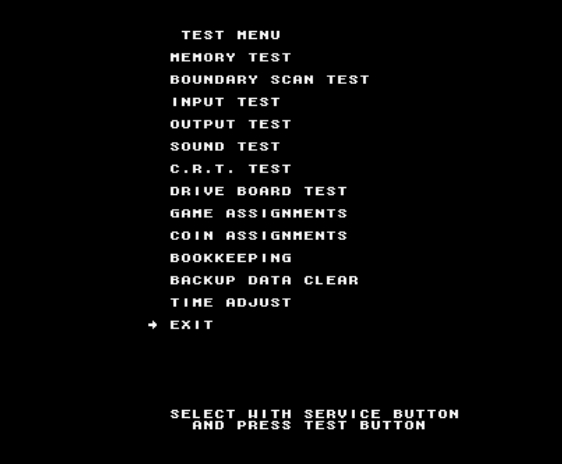
The Test menu contains options that can be adjusted within the game itself, such as aligning the crosshair for lightgun games and changing the difficulty.
The Test menu is accessed by pressing [6] on your keyboard or L3 on your gamepad during gameplay.
Press [5] on your keyboard or R3 on your gamepad to navigate and [6] on the keyboard or L3 on the gamepad to confirm.
Model 3 lightgun games require per-game calibration.
While in game, navigate the Test menu to the GUN SETTINGS option to perform the calibration.
If you receive the error “Network Board Not Present”, go to the Test menu and navigate to Game Assignments → Link ID and change the option to Single.
Emulators
supermodel
File folder
📂 roms \ 📂 model3
Right stick
Gear stick UP = 1 DOWN = 2 LEFT = 3 RIGHT = 4
L1
Shift down
R1
Shift up
L2
Brake
R2
Accelerate
L1
Shift down
R1
Shift up
L2
Brake
R2
Accelerate
L2
Brake
R2
Accelerate
R2
Accelerate
R1
Shift up
L2
Front brake
R2
Accelerate
Mouse right button
Right Trigger
Mouse right button
Reload
L2
Left ski pole
R2
Right ski pole
R1
Shift / Strafe
R1
Shift up
L2
Brake
R2
Accelerate
Mouse right button
Event button
Right stick
Turn
L1
Left Turbo
R1
Right Turbo
L2
Left Weapon
R2
Right Weapon