> For the complete documentation index, see [llms.txt](https://wiki.retrobat.org/llms.txt). Markdown versions of documentation pages are available by appending `.md` to page URLs; this page is available as [Markdown](https://wiki.retrobat.org/advanced-features/old-computers-mame-mess-launch-arguments.md).
# Old computers - MAME/MESS - launch arguments
MAME (MESS) can emulate a huge variety of old computers. These computers often do require specific command lines to be used in order to attach devices, change RAM size, autoboot content, etc.
Though RetroBat has integrated several options directly available from it's interface, we have left users with the ability to add their own command lines for specific systems or games.
As an example, RetroBat can launch the TI99 system in MAME with the following arguments:
`ti99_4a`` ``-ioport peb -ioport:peb:slot2 32kmem -ioport:peb:slot4 speechadapter -ioport speechsyn -cart alpiner`
## Computer models
The first command launched represents the Computer Model (`ti99_4a`)
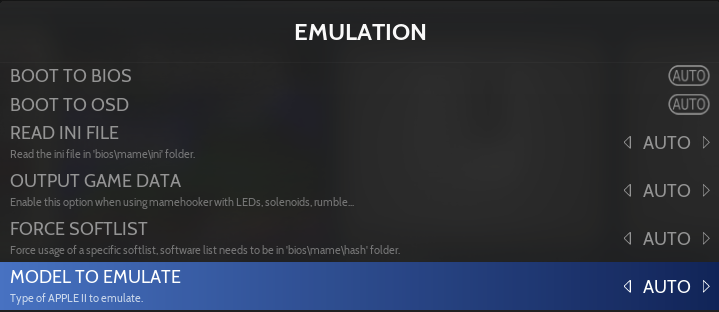
When a computer has multiple models (e.g. Camputers Lynx models 48K, 96K or 128K), RetroBat usually offers the option to select the computer model to emulate, the option can be found in the **ADVANCED SETTINGS > EMULATION** menu:
{% hint style="info" %}
You need to ensure that you have the right bios located in the bios\ folder for the specific computer model.
{% endhint %}
## Expansion slots
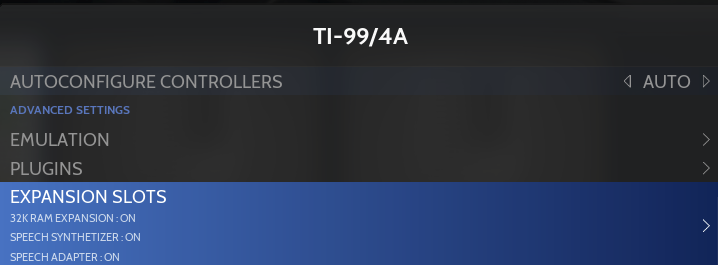
The second part of the command example represents additional slots or devices that can be enabled for a computer (`-ioport peb -ioport:peb:slot2 32kmem -ioport:peb:slot4 speechadapter -ioport speechsyn`)
RetroBat has selected a few important devices and slots for several computer models, these are located in the **ADVANCED SETTINGS > EXPANSION SLOTS** menu:
{% hint style="info" %}
If a slot/device is missing, you can ask the RetroBat team to add the option to RetroBat, or use the [additional command line](#additional-command-line-arguments) guide below.
{% endhint %}
## Media Type
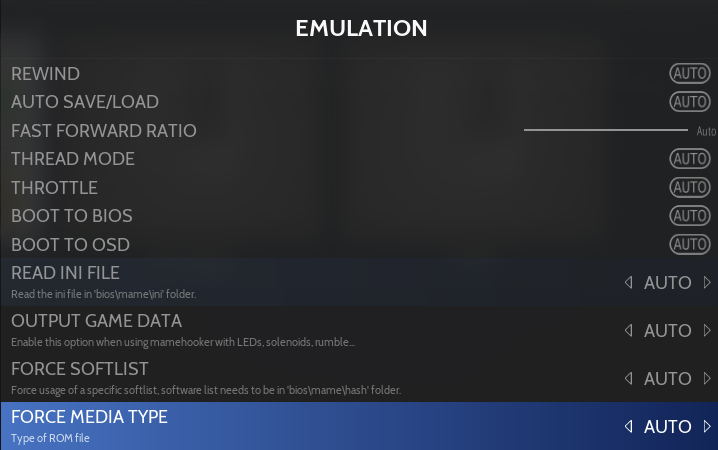
Old computers could accept multiple media types (diskette, cartridge, rom...), this is illustrated in the example with the last part of the command line before the game name (`-cart`)
RetroBat will automatically detect the media type based on the extension of the game filen, however, it is possible to force the media type, the option can be found in the **ADVANCED SETTINGS > EMULATION** menu:
## Autoboot command and delay
Some computers require typing a specific command at launch to start/load a game.
RetroBat has a specific logic to enable autoboot command, it will perform the following checks in order of priority, to determine the autoboot command:
#### 1) check if an autorun file exists
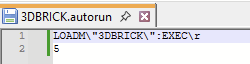
RetroBat will check if a file, with the same name as the game rom file and with extension .autorun, exists.
If this is the case, RetroBat will read the file, and add the first line as autoboot command and the second line (if it exists) as autoboot delay:
As an example, the above file will work for the 3DBRICK.dsk game file, and will generate the following command line:
```
-autoboot_command "LOADM\"3DBRICK\":EXEC\r" -autoboot_delay 5
```
#### 2) check in MAME hash file for a boot command
MAME comes with a set of softlist files, they are located in the `\bios\mame\hash` folder of your RetroBat installation. Some of these softlists contain specific boot commands for some games.
If the option "**ADVANCED SETTINGS > EMULATION >** **TRY TO AUTOBOOT**" is set in RetroBat, it will try to automatically determine the boot command by searching in the softlist files:
#### 3) Internal logic
RetroBat also contains an internal logic to autoboot games based on system and media type, for example, it will automatically apply the command `CLOAD""\n` for Oric computer.
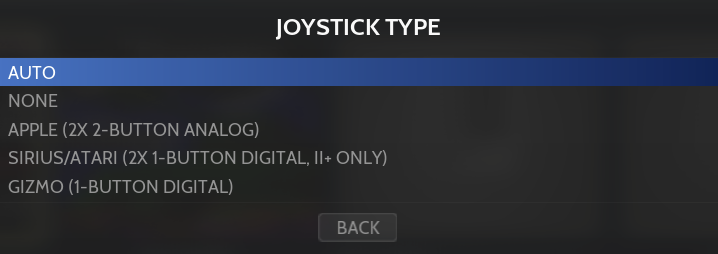
## Joystick Type
Example of command line argument for apple2: `-gameio joy`
Some computers could use different types of controller devices, the option to enable/change the controller type connected can usually be found in the **ADVANCED SETTINGS > CONTROLS** menu:
{% hint style="info" %}
If a controller type is missing, you can ask the RetroBat team to add the option to RetroBat, or use the [additional command line](#additional-command-line-arguments) guide below.
{% endhint %}
## Additional command line arguments
Additionnaly, it is possible to add custom command line arguments to the already existing arguments.
Arguments can be added either for a machine type/computer model, or for a specific game.
The files explained hereunder need to be placed in the same folder as the game rom that is launched.
### Adding command line for a specific game
RetroBat will check if a file, with the same name as the game rom file and with extension .commands, exists.
If this is the case, RetroBat will read the file, and add each line as an additional argument when launching the game:
As an example, the above file will work for the **alpiner.zip** game file, and will add the following command line:
```
-cart "C:\retrobat\bios\ti99\Extended Basic v110.rpk"
```
### Adding command line for a computer/machine
RetroBat will check if a file, with the same name as the computer model rom file and with extension .commands, exists.
If this is the case, RetroBat will read the file, and add each line as an additional argument when launching a game for the machine:
With the same example as above, this file would add the following command line for any game launched for the ti99\_4a machine:
```
-cart "C:\retrobat\bios\ti99\Extended Basic v110.rpk"
```
---
# Agent Instructions
This documentation is published with GitBook. GitBook is the documentation platform designed so that both humans and AI agents can read, navigate, and reason over technical content effectively. Learn more at gitbook.com.
## Querying This Documentation
If you need additional information that is not directly available in this page, you can query the documentation by asking a question.
Perform an HTTP GET request on the following URL with the `ask` and `goal` query parameters:
```
GET https://wiki.retrobat.org/advanced-features/old-computers-mame-mess-launch-arguments.md?ask=&goal=
```
`ask` is the immediate question: it should be specific, self-contained, and written in natural language.
`goal` is what the user is ultimately trying to achieve, the reason they need the answer. Sharing it helps GitBook give you a better, more relevant answer. A goal is most helpful when it describes the outcome the user wants rather than restating the question. For example, with `ask=how do I create an API token`, a goal like `automate deployments from our CI pipeline` lets GitBook tailor the answer to that use case.
The response will contain a direct answer to the question and relevant excerpts and sources from the documentation.
Use this mechanism when the answer is not explicitly present in the current page, you need clarification or additional context, or you want to retrieve related documentation sections.